
The Toolbar component displays an enhanced bar with large buttons that allows users to quickly access the most-used commands. By default, applications are configured with several predefined buttons: Home, Reload, Back, Next, and Print.
The roles of these buttons are as follows:
- Home: Returns to the homepage.
- Reload: Refreshes the current page.
- Back: Returns to the previously loaded page.
- Forward: Goes to the next page (if the user has already pressed Back).
- Print: Displays the print dialog for the current page.
To create a toolbar in your PHP application, add a “Standard Toolbar” to the “Components Used” list and then click Edit Toolbar.
The UI editor will appear, displaying a ready-to-use toolbar that you can modify.
In the UI editor, you can add or remove buttons, associate commands with them, and configure their properties. You can also reorder the buttons.
Toolbar Control Description #
A panel container (TscPanel) is used to hold all of the buttons. To align all buttons to the left, each button’s Align property must be set to alLeft.

Adding a New Button and Optional Separator #
To add a new button, you can clone an existing one.
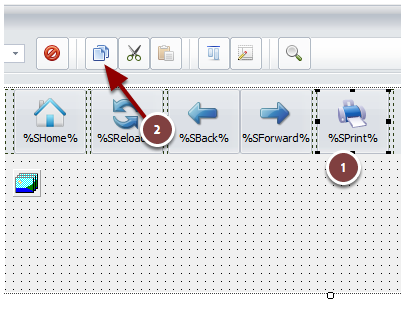
Select the button to clone and click Copy.
![Select the original button to clone and click Copy to clipboard]()
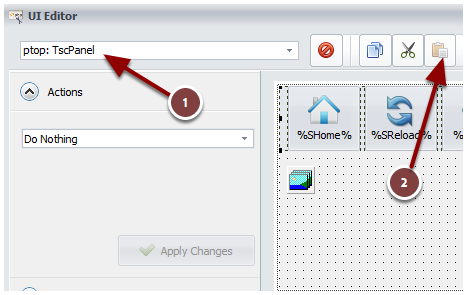
Select the entire toolbar panel (named
ptophere) and click Paste.![Select the entire toolbar panel (ptop here) and click Paste]()
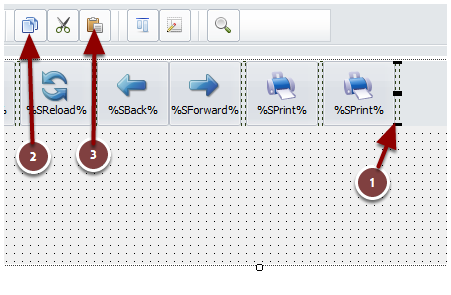
Repeat the same steps with a
Bevelcontrol to create an invisible separator between buttons.![Repeat the same steps with a Bevel control if you want to have an invisible separator between your buttons]()
Configuring Button Properties #
Useful properties for buttons include Caption, ImageIndex, Margins, ShowCaption, etc.
For the Caption property, you can use Resource Strings for easier localization. To insert a resource string, use %RESID% and replace RESID with the name of the resource string.
Changing a Button’s Image #
Tip
We recommend using 32-bit PNG image files with an alpha channel for transparency.
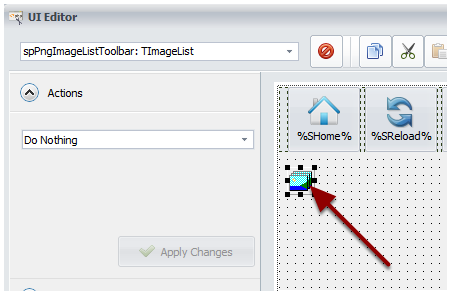
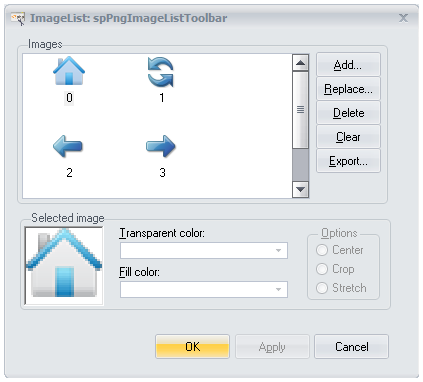
Double-click the default image list (named
spPngImageListToolbarhere).![Choose the default image list (here spPngImageListToolbar) and double-click on it]()
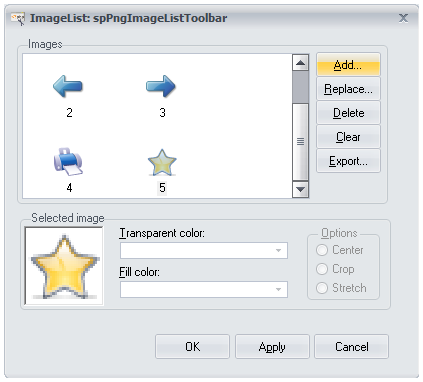
When the Image Editor appears, click Add to import a new PNG file.
![The Image Editor appears: click Add to import a new PNG]()
Take note of the number associated with the imported image and click OK.
![Memorize the number associated with the imported image and click OK]()
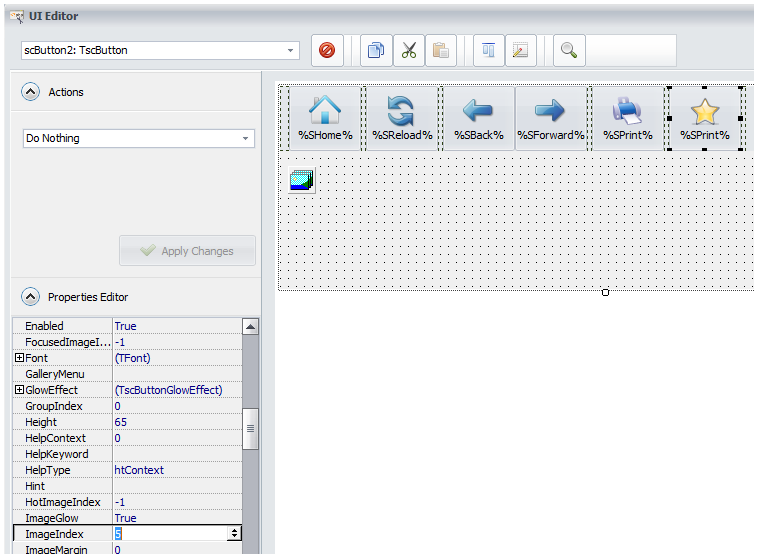
Select the desired button, scroll down the Properties Editor, and set the
ImageIndexto the number you noted (e.g., 5). The button’s image will update instantly.![Select the button you want, scroll down the Properties Editor, and set the ImageIndex to the number you memorized (5 here). The image is instantly modified]()
Modifying a Button at Runtime #
It is possible to change any property of any button at runtime.
Refer to the dedicated topic “How To Modify Controls At Runtime“.


