
To view your compiled PHP website, users must launch the .exe file. It is not possible to unpack a compiled application with a file archiver (like WinZip or 7-Zip). Ensure you back up your source files, because they cannot be extracted from a compiled application.
Applications built with ExeOutput for PHP feature several security options that you can configure on this page.
See also additional security options and recommendations for PHP files.
Global Password #
To restrict access to your application, you can password-protect it. Users will be prompted for the password before the application starts. If an incorrect password is entered, an error message is displayed (defined by the SInvalidPassword resource string), and the application closes immediately.
You can also customize the application’s behavior for incorrect password entries using the UserMain.OnInvalidPasswordAtStartup HEScript boolean event. The application invokes this event if the user provides an incorrect password. If you set the event’s result to True, the application will not exit.
function OnInvalidPasswordAtStartup: Boolean;
begin
  Result := True;
end;
To create a set of unique passwords for distribution to different customers, you can use wildcard characters. For example, you can set a global password like 123-4**-A**, where any character can be substituted for the wildcard placeholders.
Allowed Wildcard Characters #
#: Any digit (0-9)._: Any single letter (a-z, A-Z).*: Any character.
ExeOutput for PHP includes a password generator that creates lists of random passwords based on a provided mask.
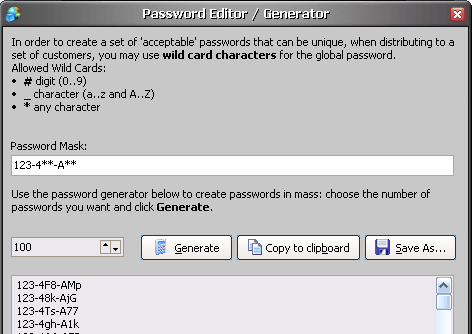
Choose the number of passwords to create and click Generate.
Set a Global Expiration Date #
If you want your application to expire after a specific date, select the desired expiration date. After that date, the application will display an error message (defined by the SPublicationExpired resource string) and close immediately. Changing the system clock will not affect the expiration state.
When testing on your own computer, you can remove the expiration state by clicking Clear expiration info. This function only works if the application has already expired.
Finally, you can customize the application’s behavior when the expiration date is reached using the UserMain.OnExpiredPublication HEScript boolean event. The application invokes this event, and if you set its result to True, the application will not exit.
function OnExpiredPublication: Boolean;
begin
  Result := True;
end;
Check Application Size at Startup #
If an application is not downloaded successfully from the internet, it may result in a truncated file. Running an incomplete application may be unsafe. To prevent issues from truncated downloads or modified file sizes, you can enable this option. When enabled, it forces the application to verify its size at startup. If the size does not match the size at build time, an error message is displayed.
Note that this option is superseded by digital signatures. If you have a code signing certificate, it is better to sign your application digitally.
Disable Print Screen #
The Print Screen key allows Windows users to capture the entire screen to a bitmap (a screenshot). This screenshot is saved to the clipboard, and users can then paste it into any image editor or word processor. To disable this functionality, turn on the Disable Print Screen option. Pressing the key will no longer take screenshots while the application is running.
Notes:
- However, this function does not stop dedicated screen capture tools.
- Some programs (like screen capture tools) may also try to override the Print Screen hotkey, which could cause conflicts.
Disable Printing Feature in Entire Application #
This option disables printing functionality across the entire application. When this option is enabled, users will be unable to print any content, including HTML pages and PDF documents. This ensures that no part of the application’s content can be printed.
Note
This option does not disable the Print button on any toolbars or ribbons. You must remove any Print buttons manually; otherwise, clicking them will do nothing.
User Action Restrictions #
To enhance the security of your application, ExeOutput for PHP disables certain user actions by default:
- View Source (Ctrl+U): The keyboard shortcut
Ctrl+U, which normally allows users to view the HTML source code of a page, is disabled to protect your code. - Drag and Drop to Popups: Dragging external files and dropping them into pop-up windows is disabled.
Allow Only One Instance of the Application #
Enable this option to ensure that only one instance of your application can run at a time. If a user tries to run a second instance, it will immediately exit, and the original instance will be brought into focus.
Moreover, command-line arguments are passed directly to the running instance. This feature is useful for help files, as it lets you change the current topic, for instance, without having to close and restart the application.
Do Not Hide Virtual Files in Dialog Boxes #
By default, ExeOutput for PHP sets the “hidden” attribute for all virtual files in the Data subfolder (see Accessing Source Files from PHP). Thus, these files will not appear in the “Open” or “Save As” dialog boxes invoked when, for instance, a user chooses a file to upload.
If you want these files to appear for any reason, enable the Do not hide virtual files in open/save dialog boxes option. However, please note that virtual files can be copied to physical folders from these dialog boxes (though you can still encrypt your PHP source files).
Note: You can also try the option to Use an absolute path for the virtual “Data” subfolder.
HTTP Authentication #
For applications that require user registration and login, ExeOutput for PHP provides support for HTTP Basic Authentication. This allows you to protect specific pages or your entire application with a username and password.


