
In the UI editor, when you place a menu item, button, or timer on the UI form, you must associate an action with it that will be performed when the user clicks it:
Images can also optionally be associated with a click action.
How to Define an Action #
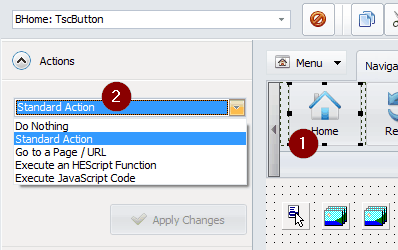
- Select the component (button, image, or menu item) to activate the Actions panel.
- Choose the desired action:
Standard Action,Go to a page/url,Execute an HEScript Function,Execute PHP Code (async), orExecute JavaScript Code. - Be sure to click Apply Changes to save your settings before selecting another control or exiting the UI editor.
Available Actions #
Standard Action #
Lets you choose a predefined action from the list:
- Go Home
- Back
- Forward
- Refresh
- Find
- Select All
- Copy
- Cut
- Paste
- Zoom In
- Zoom Out
- Reset Zoom
- About
- Exit Application
- Print to PDF
Standard actions are not available for images.
Go to a page/url #
Opens the specified page or URL in the application’s browser. You can optionally specify a target:
_heexternal: Opens the URL in the default external web browser._henewinstance: Starts a new instance of the application and opens the URL.
Finally, if you are using frames, the destination frame’s name can be specified.
Important
This is not the correct way to open a popup. See below for instructions.
Warning
Do not specify a frame if there is no frame on your current webpage; otherwise, the action will fail.
Execute an HEScript Function #
Associates an HEScript procedure or function with the button, menu item, or timer.
Syntax: [scriptname].[functionname]
Execute PHP Code (async) #
This action saves the specified PHP code to a temporary virtual PHP file in the application’s root folder and has the PHP engine execute it. When specifying the PHP code, you must include the <?php and ?> tags. For instance:
<?php include('cron.php'); ?>Execute JavaScript Code #
This runs the specified JavaScript code. It must be the actual JS code, not just the name of a function. The code is executed within the context of the current HTML page.
Opening a Page in a Popup #
To open a new window or popup, you must use JavaScript. Choose the Execute JavaScript Code action and type the following, for instance:
window.open('https://www.exeoutput.com', 'preview', 'width=1000,height=700');


