
ExeOutput for PHP
  • Discover
    Homepage
    Our Latest News and Articles

    Keep up-to-date with the latest developments, insightful articles.

    Why a PHP Compiler?

    Reasons for using our PHP compiler ExeOutput for PHP.

    Screenshots

    Get a visual tour of our software through various screenshots.

    Video and Screencasts

    Access a range of video content, from detailed tutorials to product demos.

  • Feature Tour
    All-in-one PHP to EXE Compiler
    Use PHP power to create Windows apps
    Full HTML5, JavaScript and CSS3 Support
    Make GUI And Console Apps with PHP
  • Downloads
    Get ExeOutput for PHP

    Download the installer of our PHP to EXE compiler

    PHP App Examples

    Download sample apps made with ExeOutput for PHP

    WordPress Desktop App

    Download the stand-alone WordPress app sample

  • Buy Now
  • Learn
    Documentation

    Full online documentation of ExeOutput for PHP

    PHP App Samples

    Example projects made with ExeOutput for PHP for various cases

    ChangeLog

    Version history and releases of ExeOutput for PHP

    Privacy Policy

    See our Privacy Policy for ExeOutput for PHP

    About Us

    More information about G.D.G. Software

  • Support
    Contact Us

    Contact our staff or open a support ticket

    Newsletter

    Stay Updated: subscribe to our newsletter

    Frequently Asked Questions

    Find your answer directly in our FAQ

    Support Center

    Get direct support for ExeOutput for PHP

    Affiliate Program

    Join our affiliate program to promote ExeOutput and earn money

    Community Forum

    Visit our support forum and ask your questions

Try For Free
My Account

Getting Started

11
  • Welcome to ExeOutput for PHP
  • Getting Started
  • Starting a New Project
  • Advice for Getting Started with PHP Applications
  • How to Compile Your Project
  • How Compiled PHP GUI Applications Work
  • How Compiled PHP Console Applications (CLI) Work
  • Using PHP Frameworks
  • Visual C++ Redistributable Requirement
  • Application Command Line Switches
  • PHP Samples

Working With PHP

12
  • Working with PHP
  • Choose a PHP Version
  • Accessing Files in Compiled PHP Applications
  • Saving Files with PHP in Desktop Applications
  • Solving PHP Errors
  • Using the Save As Dialog Box in PHP Applications
  • Selecting Local Files with PHP (File Upload Replacement)
  • Built-In ExeOutput for PHP Functions
  • About PHP Sessions and Cookies
  • Global Variables
  • Using the cURL Extension
  • Using exec(), system() in Applications

Databases

4
  • Using Databases in Applications
  • MySQL and MariaDB Support
  • Using a Portable MySQL (MariaDB) Server
  • How to Check MySQL Server Connection

JavaScript And Browser

14
  • JavaScript and the Chromium Browser
  • Developer Tools in ExeOutput Applications
  • The exeoutput JavaScript Object API
  • JavaScript window extension
  • Special Protocols for Links
  • HTML5 and CSS3 Support
  • Using HTML5 Video and Audio
  • Print, Kiosk Printing, and PDF
  • Opening New Windows
  • JavaScript window extension
  • Using Flash Objects (SWF) in Compiled Applications
  • Adding Custom Headers to Requests
  • How to Configure Proxy for Your App
  • HTTP Basic Authentication

File Manager

4
  • File Manager
  • File Properties Editor
  • About External Files
  • Internal Code Editor

Application Settings

9
  • Choosing and Configuring the Rendering Engine
  • Chromium Embedded Framework (CEF) Settings
  • WebView2 Rendering Engine Settings
  • Main Window Settings
  • UI Skin Properties
  • Application Components
  • Language and Localization
  • Startup and Exit Messages
  • Application Settings – Dialog Boxes

PHP Settings

7
  • PHP Settings – Main Settings
  • PHP Settings – PHP Extensions
  • PHP.ini Settings
  • PHP Settings – String Protection
  • PHP Settings – PHP Debugging
  • PHP Settings – External HTTP Server
  • Redirection and Routing

User Interface

13
  • User Interface Components
  • User Interface Editor
  • UI Control Actions
  • How to Modify Controls at Runtime
  • Status Bar Properties
  • Printer Properties
  • Tray Icon Properties
  • Context Menu Properties
  • Creating a Ribbon for Your Application
  • Toolbars in Your PHP Application
  • Menu Bar in your PHP application
  • Adding an Image or Logo to the UI
  • Using Timers and Cron Jobs in Your Application

Security

4
  • Security – Global Protection
  • Security – PHP Protection
  • Security – Code Signing (Digital Signatures)
  • Security – Licensing

Application Output

5
  • Application Output Settings
  • Output – Deployment Options
  • Application Loading Screens
  • Output – EXE Icon and Version Information
  • Output – Creating Installers or Zip Archives

Scripting with HEScript

9
  • Introduction to Scripting with HEScript
  • The HEScript Editor
  • Adding HEScript Code to Your Application
  • Script Templates
  • Running and Calling HEScript Procedures/Functions
  • HEScript Function Reference
  • How to Run an Executable Program
  • How to Prompt a User for Their Name Once and Store It
  • How to Call DLL Functions

Additional Information

6
  • Environment Options
  • Technical Notes Regarding Applications
  • Cloning a Project
  • Command Line Options
  • Contact Information
  • About this documentation
View Categories
  • Home
  • ExeOutput for PHP Help
  • Getting Started
  • Getting Started

Getting Started

1 min read

ExeOutput for PHPâ„¢ is a visual PHP to EXE compiler that converts PHP scripts, PHP applications, and PHP-powered websites into standalone desktop and console applications for Microsoft Windows.

Create eBooks, custom web browsers, database front-ends, games, interactive catalogs, daemons, console programs, HTML5 applications, and much more by combining the power of PHP, HTML, and JavaScript into desktop applications.

Creating GUI and Console Applications for Windows #

Applications built with ExeOutput for PHP can feature a GUI and function as a standard web browser. Users can navigate your PHP pages as if they were using a web browser, without needing an internet connection, PHP installation, or a remote web server. PHP scripts are executed by the built-in PHP runtime, and results are immediately displayed to the user. Additionally, companion files such as HTML, images, JavaScript, XML, CSS, and more are seamlessly handled.

The screenshot below shows a simple application displaying the output of the phpinfo() function:

Application with phpinfo

You can customize the user interface to fit your needs. For example, the PHP Info button in the screenshot above is not included by default.

You can also generate PHP console applications (CLI) that run without a GUI, executing PHP in CLI mode.

If needed, you can create an external HTTP server to allow your GUI application to be accessed from external web browsers using http://localhost:port URLs.

Navigating the Interface #

Use the table of contents on the left to browse different help topics and explore the features of ExeOutput for PHP. You can also press F1 or click the Help button in ExeOutput for PHP to directly access the relevant help topic.

ExeOutput utilizes ribbons, grouping all related features into pages under one of the following five tabs: File Manager, Application Settings, PHP Settings, Security, and Output.
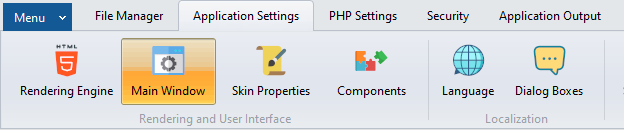
Ribbons interface

  • File Manager: Manage files that will be compiled into your application. It functions like Windows Explorer, with a tree view of folders on the left and the files within the selected folder on the right. You can add, remove, edit files, and configure their properties.

  • Application Settings, PHP Settings, Security: These ribbons are the core of ExeOutput for PHP, containing all the features that allow you to customize the behavior and appearance of your application.

  • Application Output: Access options related to how ExeOutput for PHP will generate the application’s .exe file.

Tip

To switch between ribbons, click the desired tab at the top of the main window. Standard and additional commands, such as Load/Save Project and Build Options, are available by clicking the Application Menu button:

Application menu button

Shortcuts are available in the window’s toolbar:

Window shortcuts

  • New Project
  • Load Project
  • Save Project
  • Compile Application
  • Run Application

Starting Your First Project #

Each time you open ExeOutput for PHP, the welcome page is displayed, allowing you to create a new project or load an existing one.

Advice for Getting Started with PHP Applications in ExeOutput for PHP

Creating a Project

How Compiled GUI PHP Applications Work

How Console PHP Applications (CLI) Work

What are your Feelings

  • Happy
  • Normal
  • Sad

Share This Article :

  • Facebook
  • X
  • LinkedIn
  • Pinterest
Welcome to ExeOutput for PHPStarting a New Project

Leave a Reply Cancel reply

Your email address will not be published. Required fields are marked *

Table of Contents
  • Creating GUI and Console Applications for Windows
  • Navigating the Interface
  • Starting Your First Project
ExeOutput for PHP to EXE compiler

PHP to EXE App Compiler
© G.D.G. Software 2025

X-twitter Youtube
Software
  • Home
  • Feature Tour
  • Screenshots
  • Video and Screencasts
  • Home
  • Feature Tour
  • Screenshots
  • Video and Screencasts
Get
  • Download
  • Buy Now
  • PHP App Samples
  • My Account
  • Download
  • Buy Now
  • PHP App Samples
  • My Account
Connect
  • Latest News
  • Newsletter
  • Forum
  • Affiliate Program
  • Support Center
  • Latest News
  • Newsletter
  • Forum
  • Affiliate Program
  • Support Center
QUESTIONS?
  • Contact Us
  • FAQ
  • Documentation
  • Privacy Policy
  • About Us
  • Contact Us
  • FAQ
  • Documentation
  • Privacy Policy
  • About Us
Manage Consent
To provide the best experiences, we use technologies like cookies to store and/or access device information. Consenting to these technologies will allow us to process data such as browsing behavior or unique IDs on this site. Not consenting or withdrawing consent, may adversely affect certain features and functions.
Functional Always active
The technical storage or access is strictly necessary for the legitimate purpose of enabling the use of a specific service explicitly requested by the subscriber or user, or for the sole purpose of carrying out the transmission of a communication over an electronic communications network.
Preferences
The technical storage or access is necessary for the legitimate purpose of storing preferences that are not requested by the subscriber or user.
Statistics
The technical storage or access that is used exclusively for statistical purposes. The technical storage or access that is used exclusively for anonymous statistical purposes. Without a subpoena, voluntary compliance on the part of your Internet Service Provider, or additional records from a third party, information stored or retrieved for this purpose alone cannot usually be used to identify you.
Marketing
The technical storage or access is required to create user profiles to send advertising, or to track the user on a website or across several websites for similar marketing purposes.
  • Manage options
  • Manage services
  • Manage {vendor_count} vendors
  • Read more about these purposes
View preferences
  • {title}
  • {title}
  • {title}